Originally published on Medium: Remotely Accessing Wayland-based Applications using RDP client in Yocto Image
Get more detailed information of this topic on the official website with working demo.
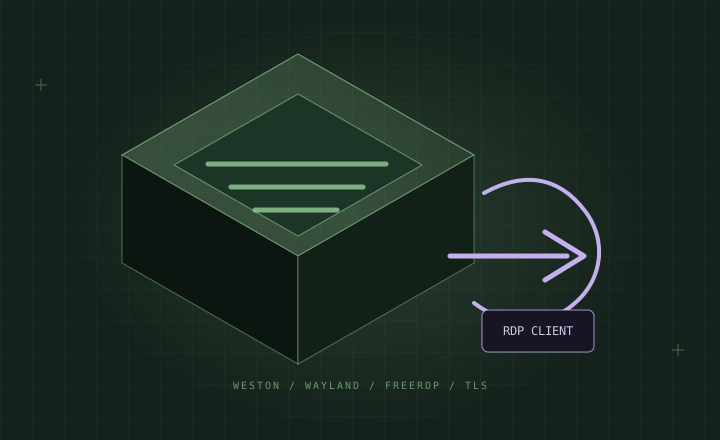
Remote access to graphical applications running on embedded systems can be a valuable tool for developers and administrators. In this article, we’ll explore how to remotely access Wayland applications in a Yocto image using RDP (Remote Desktop Protocol). This method leverages the Wayland display server, specifically Weston, and the FreeRDP library to achieve remote access.
Before You Begin
Ensure that:
- Your Yocto image includes Weston with RDP compositor and screen sharing enabled. You can find the Yocto integration here.
- FreeRDP is a dependency of the RDP compositor and should be included in your Yocto image.
- On your target device, make sure the FreeRDP package is installed, and TLS certificates and keys (
server.crtandserver.key) are in the/etc/freerdp/keysdirectory.
Generating TLS Certificates
To generate TLS certificates for RDP, use the winpr-makecert tool in the /etc/freerdp/keys directory:
winpr-makecert -rdp -path $PWD
Configuring Weston
Add these lines in the weston.ini configuration file:
[core]
modules=systemd-notify.so

[screen-share]
command=/usr/bin64/weston --backend=rdp-backend.so --shell=fullscreen-shell.so --rdp-tls-cert=/etc/freerdp/keys/server.crt --rdp-tls-key=/etc/freerdp/keys/server.key --no-clients-resize
start-on-startup=true
Launching Weston
Start Weston with this command to enable RDP access:
weston --debug --ttty=1 --backend=fbdev-backend.so --modules=systemd-notify.so,screen-share.so --use-gl=1 --log=${XDG_RUNTIME_DIR}/weston.log $OPTARGS
Accessing the Target Remotely
To remotely access Wayland applications, launch the RDP client on your host machine.
For Wayland:
wlfreerdp /v:<target_ip> /log-level:TRACE
For X11:
xfreerdp /v:<target_ip>
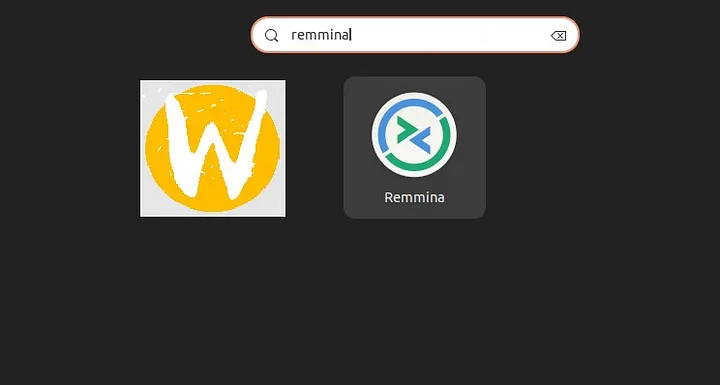
Additionally, Remmina can also be used for access.
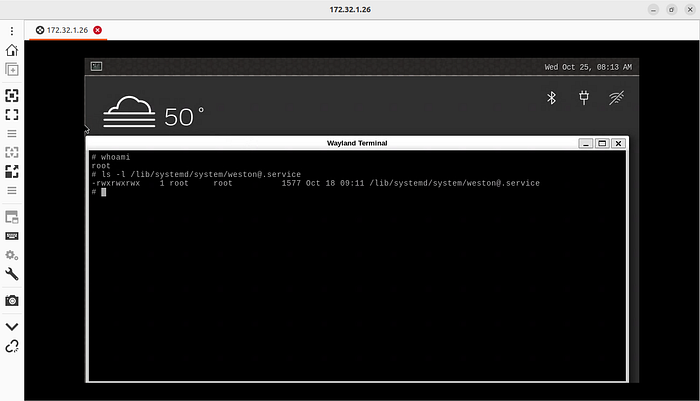
As shown in the image above, we can control the remote device and pass commands from the host machine.
Configuring Weston with the RDP compositor and FreeRDP allows easy access to Wayland applications on Yocto-based systems. Remote access enhances the flexibility and utility of embedded systems for a wide range of applications. This method is powerful for development and troubleshooting headless devices in Yocto Project-based environments.
Reference
To integrate this in a Yocto image, I already did it in the meta-sirius layer. Check out my GitHub repo: prashantdivate/meta-sirius